Guide

The AutoVariant guide

Everything you need to turn structured data into fully populated Figma designs — from your first CSV to advanced batch workflows.

01.Quick start

Four steps to your first batch of generated variants.

  1. 1 Select a master frame in Figma — this is the design blueprint every output will be generated from.
  2. 2 Upload a CSV with one row per variant. Column headers must match your Figma layer names exactly.
  3. 3 Map your layers — connect each CSV column to the corresponding text or image layer inside the plugin.
  4. 4 Click Generate — AutoVariant creates one frame per CSV row, populated with your data.
Tip: Not sure what to put in your CSV? Use one of the free templates on the homepage — they include a pre-structured CSV and matching Figma file.

02.Overview

AutoVariant is a Figma plugin that generates design variants from structured data. You provide a master frame and a CSV — the plugin handles the rest, duplicating the frame and populating each copy with a different row of data.

It works by mapping CSV column headers to layer names inside your Figma frame. Any layer — text, image, group — can be driven by data as long as the names match.

The result is a repeatable workflow that replaces hours of manual design work.

03.When to use AutoVariant

AutoVariant is purpose-built for any design task where the layout stays the same but the content changes. Common use cases:

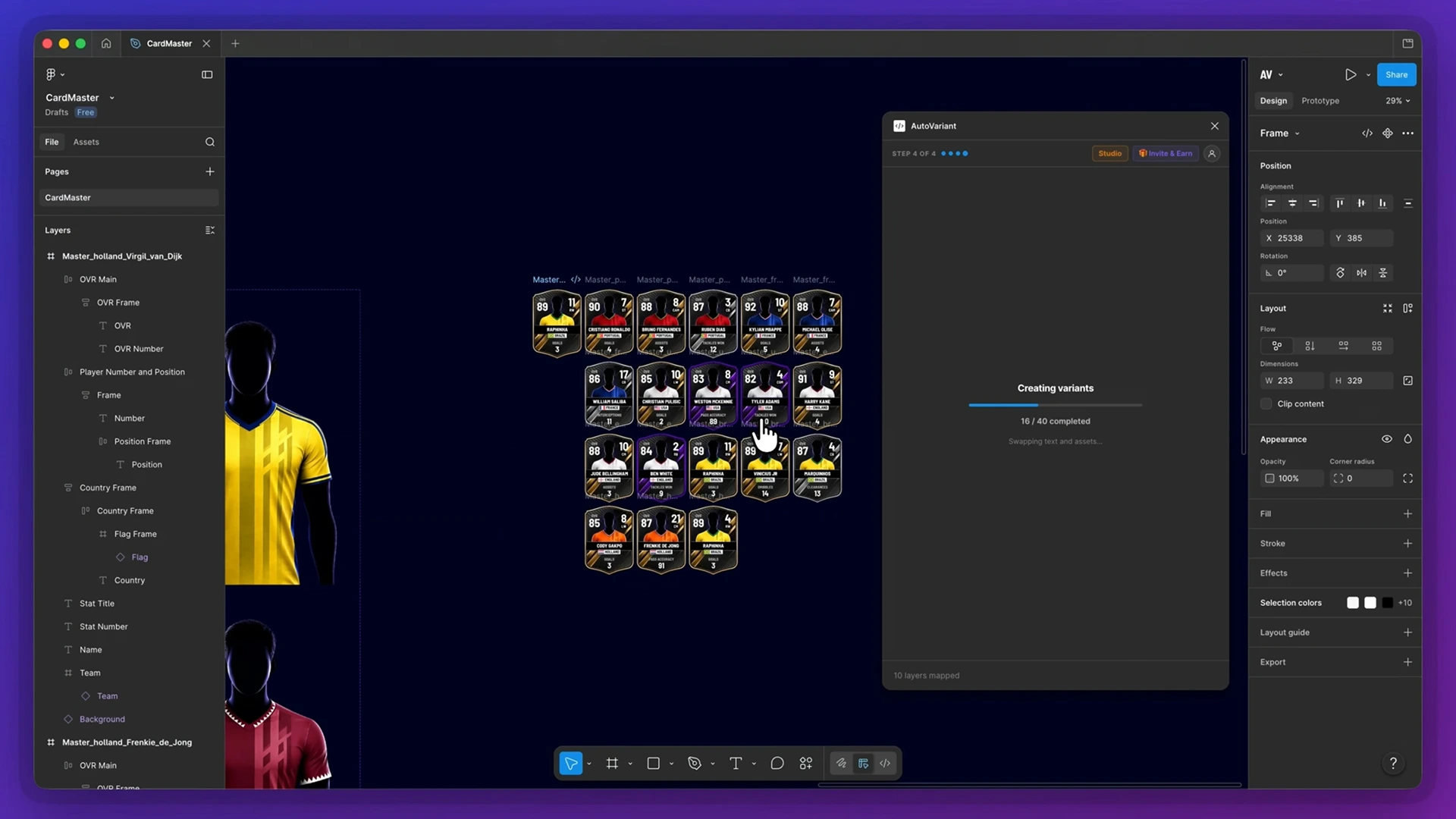
Player cards Generate a unique card for every player in a squad — names, positions, stats, photos, all from one CSV.
Social graphics Create hundreds of on-brand social posts with different copy, dates, or images in one batch.
Multi-language designs Produce the same layout in 20 languages without touching the design file manually.
Bulk assets Export banners, certificates, name badges, or product cards at scale from a single spreadsheet.
Data-driven visuals Populate charts, stats blocks, and data tables directly from structured data exports.
Client deliverables Deliver personalised design packs — each client gets their own version without manual duplication.

04.Design rules

These rules are strict — most issues come from breaking them.

  • Layer names must exactly match CSV column headers. Capitalisation, spacing, and punctuation all count. Player Name and player_name are not the same.
  • Each CSV row produces one output frame. 50 rows = 50 generated frames, placed in order on the canvas.
  • Use text layers for text content. AutoVariant writes text by targeting text layers. Shapes, icons, and groups cannot receive text data directly.
  • Keep your layout consistent. Every generated frame inherits the exact structure of the master frame. If the master looks wrong, every output will too.
  • Do not rename layers after mapping. If you change a layer name in Figma after setting up your mappings, the mapping breaks. Always finalise layer names before mapping.
  • Image layers require a specific setup. The image layer must be a frame with fill — not a plain image. Studio plan required for image replacement.
⚠️
Common source of issues: If nothing generates, check your CSV column headers against your Figma layer names first. A single space or capitalisation difference will prevent the mapping from working.

05.Step-by-step walkthrough

Follow in order — each step depends on the one before it.

Step 01

Prepare your design

The master frame is duplicated once per CSV row. It must be clean, complete, and correctly named before you open the plugin.

  • Create a single, complete frame representing one variant
  • Name every text and image layer you want to populate with data
  • Make sure layer names are unique within the frame
  • Avoid nested groups with duplicate names
  • Use Auto Layout for text layers that need to resize
Tip: Build for the longest likely content. If a player name might be "Alexander Robertson", design for that — shorter names will just have more space.
⚠️
Common mistake: Using component instances with different internal layer names. Always check what the actual layer is named inside the component — not the component itself.
Step 02

Structure your CSV

Row 1 is column headers — these map to your Figma layer names. Every subsequent row becomes one output frame.

  • Row 1: column headers matching your Figma layer names exactly
  • Rows 2+: one row per design variant you want to generate
  • For images: include the image URL or file reference in the cell
  • For empty cells: leave blank — the plugin skips empty mappings
  • Save as UTF-8 encoded CSV (not Excel .xlsx)
Pro tip: Use ChatGPT to generate CSVs from a prompt. Tell it your column names and how many rows you need — it produces a clean CSV you can import directly.
⚠️
Common mistake: Exporting from Excel with the wrong encoding. Always use File → Save As → CSV UTF-8 when working from a spreadsheet.
Step 03

Map your layers

After uploading your CSV, map each column header to the corresponding layer in your Figma frame.

  • Open AutoVariant from the Figma plugin menu
  • Select your master frame on the canvas
  • Upload your CSV file
  • Match each column header to a layer name in the dropdown
  • Mark image fields with the image toggle
  • Review the mapping before generating
Tip: The plugin will auto-match columns whose names exactly match layer names. If you name your layers the same as your CSV headers, most of the mapping is done for you.
⚠️
Common mistake: Forgetting to select the master frame before uploading your CSV. The plugin needs a frame selection to know what to duplicate.
Step 04

Generate variants

Click Generate. AutoVariant duplicates your master frame once per row, populates each copy with the row data, and places all frames on the canvas.

  • Click Generate in the plugin panel
  • Frames are placed in rows on the canvas automatically
  • Text layers are updated first, then image layers
  • Generation speed depends on batch size and file complexity
  • After generation, you can edit any frame individually as normal
Tip: Start with text-only generations first to verify your mappings are working correctly. Add image columns once text generation looks right.
⚠️
Common mistake: Running a large batch on a complex file before testing with 5–10 rows. Always test with a small batch to confirm the output before generating hundreds of frames.

06.Common mistakes

Four root causes cover most support issues.

Nothing generates

Usually caused by no frame being selected, or by the master frame being inside a group rather than at the canvas level. Select the frame directly and try again.

Text not updating

The CSV column header doesn't exactly match the Figma layer name. Check capitalisation, spaces, and punctuation. Both must be identical character-for-character.

Images not working

Image replacement requires the Studio plan. On Free and Pro, image layers are skipped. Also check that the image layer is a frame with a fill, not a plain image object.

Mapping issues after renaming

If you rename a Figma layer after saving a mapping, the connection breaks. Always finalise your layer names before setting up mappings in the plugin.

07.Pro tips

These habits will help you move faster once the basics are working.

  • Use ChatGPT to generate your CSVsTell it your column names and the type of content you need — it will produce a clean, importable CSV in seconds. Useful for prototyping, demos, and testing.
  • Agree on naming conventions before you startIf multiple people work on the same Figma file, agree on layer naming rules upfront. A single inconsistency (underscore vs space, capital vs lowercase) breaks mappings silently.
  • Build batch workflows from templatesThe free templates on the homepage are designed to be starting points. Duplicate the template file, swap the content, and you have a working batch workflow without setting up mappings from scratch.
  • Start text-only, then add imagesText generation is instant. Image generation takes longer and requires Studio. Verify your text mappings work correctly before adding image columns — it will save debugging time.
  • Use small test batches firstGenerate 5 rows before running 500. Mistakes in a master frame are multiplied across every output — catching them early costs nothing.

08.Plans

Three plans. The difference is batch size, image support, and priority access — the plugin interface is identical across all of them.

Free

£0 / month
  • Up to 5 variants per batch
  • Text and image generation included
  • Access to all mapping features
  • Good for testing and small projects

Pro

£19 / month
  • Unlimited text variants
  • CSV import workflows
  • Text-only generation
  • No image replacement
  • For text-driven bulk workflows

Studio

£45 / month
  • Unlimited text and image variants
  • Asset swapping and image fill
  • Bulk generation, no limits
  • Priority support
  • For full production workflows
ℹ️
All plans give you full access to the plugin interface and layer mapping. Plan limits apply at generation time — you can set up and test any workflow on any plan before committing to a batch.

Start with a template — generate your first batch in minutes

Download the free template pack. It includes a Figma file and a matching CSV, ready to run.

Get free template